
Question
How do you install Comet Backup on a Synology NAS?
Answer
Since Comet Backup 21.12.6, branded Synology SPKs can be generated and downloaded from the Comet Management Console. Comet offers two downloads for Synology: one for DSM 6 and one for DSM 7. Due to Synology packaging rules, these SPKs are not interchangeable.
SPKs are available for Synology NAS devices which meet the following requirements:
- CPU: x86_64, i686, ARMv7, or ARMv8
- DSM version: 6 or 7
The Synology SPK does not include a graphical client. Instead, creating Protected Items and running backups and restores is done from the Comet Management Console.
Installation
Note: On DSM 6, installation of packages published by any publisher must be allowed before Comet can be installed. This setting can be enabled from the Package Center, in Settings > General > Trust Level, by selecting the "Any publisher" radio button and accepting the settings.
Installation of Comet Backup on a Synology NAS follows the same process as installing any other SPK:
- Open the Package Center.
- If on DSM 6, ensure the trust level setting above has been applied.
- Click Manual Install in the top right.
- Upload the
.spkfile downloaded from the Comet Management Console.- If on DSM 7, accept the prompt to allow the installation of a third-party package.
- Accept the license agreement.
- Enter credentials for the appropriate Comet Management Console and user.
- If a previous version of Comet was installed on the NAS and its settings were not removed when it was uninstalled, the installer will automatically detect the credentials. Leaving all fields blank reuses the existing credentials; new credentials can also be entered and will take precedence.
- Click Apply to complete the installation.
Permissions (DSM 7)
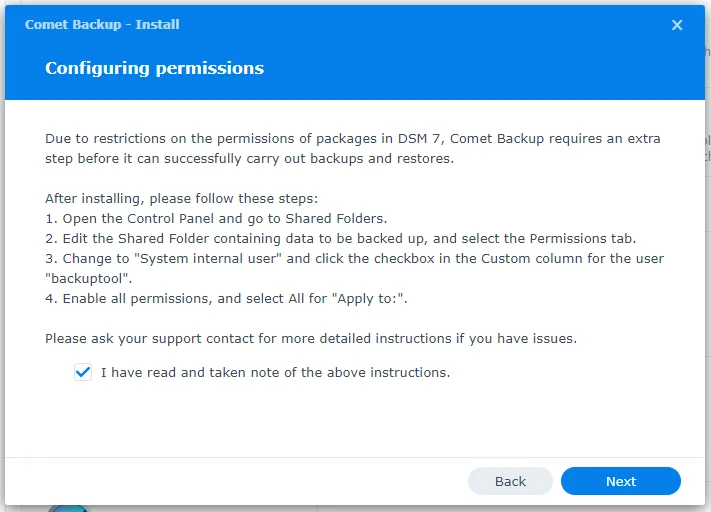
On DSM 7, Comet runs a special package-specific user named backuptool. This user must be granted permissions to access the appropriate Shared Folders before backups and restores can be performed. This step does not apply to DSM 6.
- Log in to the Synology NAS.
- Open the Control Panel and go to Shared Folders.
- Select the Shared Folder containing the data to be backed up and click Edit.
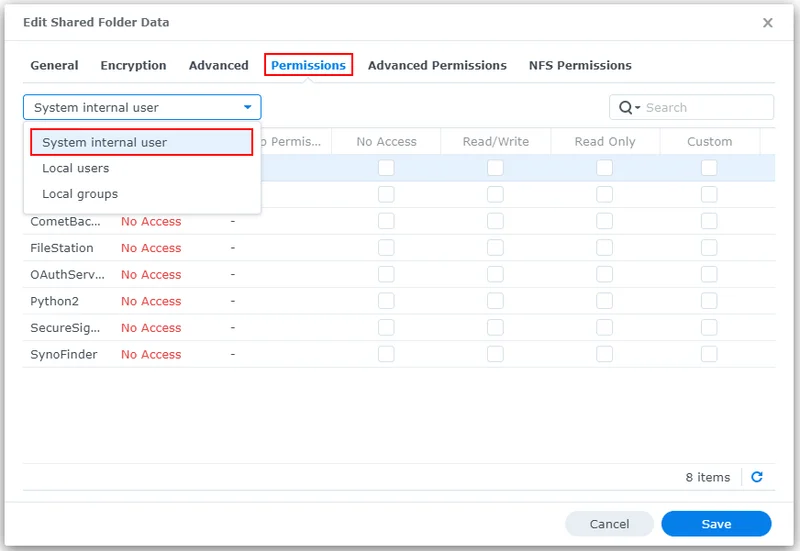
In the Permissions tab, select System internal user from the dropdown menu on the left.
- For the user
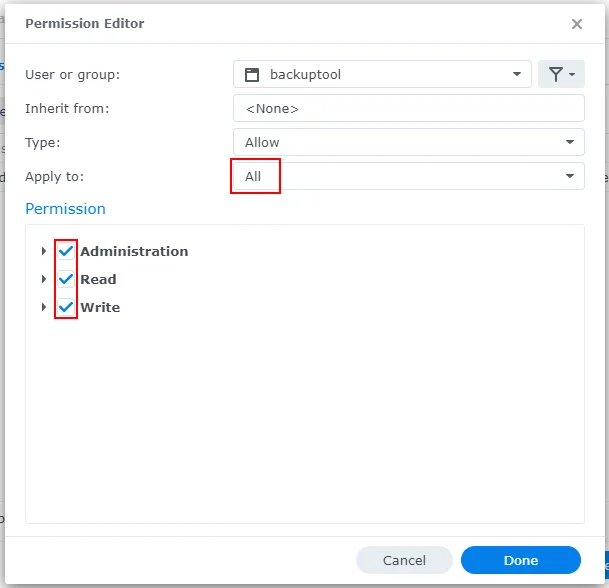
backuptool, click the checkbox in the Custom column. - In the dialog that appears, ensure:
- "Apply to:" is set to "All".
All permissions are checked.
Limitations
Due to restrictions placed on packages by Synology for DSM 7, Comet runs as a special package-specific user, which results in some limitations:
- Remote upgrade/uninstall is not supported. Third-party SPKs are no longer allowed to run as root, so Comet cannot initiate a package upgrade/uninstall from within a package itself. To upgrade, install the new version manually in place of the old version.
- When performing a restore to a Synology NAS, permissions/ownership may not be restored correctly, because a package user is not allowed to
chownto a user other than themselves.
After the installation
The Synology SPK does not provide a graphical client for Comet. Creating Protected Items and manually running backups or restores is done from the Comet Management Console:
- Create a Protected Item from the Protected Items tab on the user's page.
- Run backups and restores by selecting the connection to the online Synology device from the Devices tab on the user's page.
Note: For very large data sets (tens of terabytes), consider splitting the backup into multiple Protected Items going to separate Storage Vaults, to limit the resource usage of each job. Synology NAS devices typically have limited RAM, which can constrain how much data Comet can process in a single job.
Comments
Please sign in to leave a comment.